System Overview
The system is built around isolated virtual rooms (Instances). Each group or squad gets their own private instance with four distinct interfaces:
- 📍 GATEWAY (Home page) : Main entry point. Create a new instance or join an existing one.
- ⚙️ ADMIN PANEL : Password-protected (4-digit PIN generated at creation). The squadron leader controls all live displays from here. Enable
PUBLICmode to remove the PIN requirement. - 🛰️ OVERLAY (Player screen) : The page meant to be displayed in-game as a transparent HUD. All changes made in Admin appear here instantly.
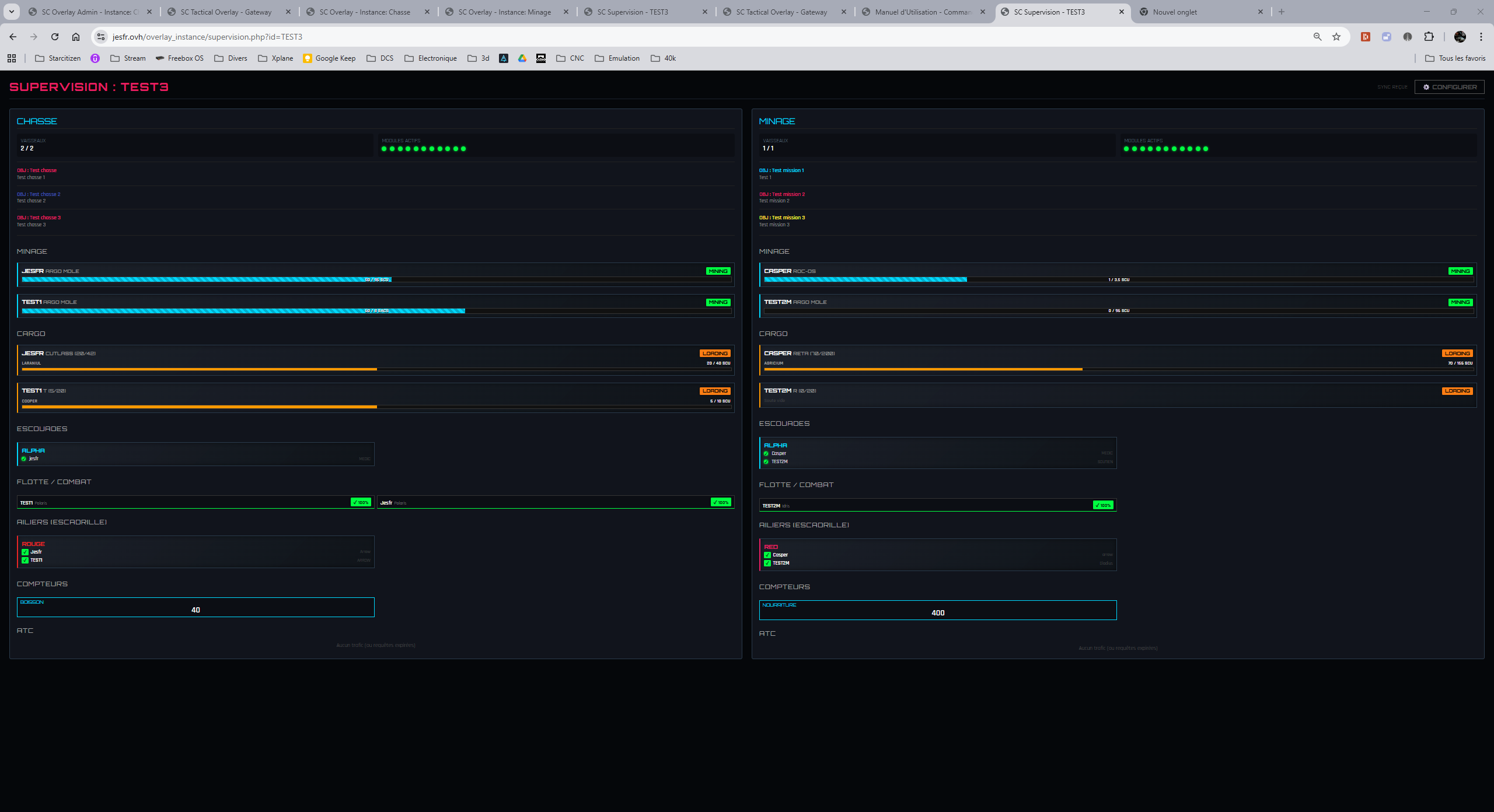
- 👁️ SUPERVISION (Control Tower) : A high-density dashboard to monitor multiple instances simultaneously — ideal for multi-fleet ops, cross-mining, etc.
- 🖱️ All overlay windows are drag & droppable — position them anywhere on your screen.
In-game Setup — Xbox Game Bar
Want to see the overlay directly over Star Citizen while you play? Here's how to do it with the built-in Xbox Game Bar on Windows.
Open Xbox Game Bar
Press Win + G while in-game (or on your desktop).
Install the "One Page Browser" widget
In the Game Bar widget store, find and install One Page Browser (or any browser widget). Direct link: apps.microsoft.com/detail/9MXS3495H1JG
Load your Overlay URL
Open the widget and paste your instance's OVERLAY URL:
https://overlay.sctool.fr/overlay.php?id=YOUR-INSTANCE-ID
Adjust & Pin
Resize the window, set your preferred Opacity, then click the 📌 Pin icon so it stays visible when you close the Game Bar overlay.
Enable click-through
Activate Click-through mode on the widget window so mouse clicks pass straight to the game instead of interacting with the overlay.
Modules Reference
All modules work on a Admin → Overlay model: the Admin controls settings; the Overlay reflects all changes in real time without any page reload.
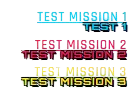
1 — Missions & Objectives
Manage active orders visible to your entire squad.
- Admin: Edit the title and objective text. Use the checkbox to activate one or several missions simultaneously.
- Overlay: Active mission(s) appear with a smooth animation in the top-right corner of the screen.
2 — Timers (Stopwatch & Countdown)
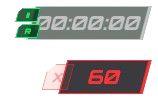
Two independent time modules players can control directly from the overlay.
- Countdown (Admin): Set the duration in seconds (e.g. 1200 for 20 min) and save.
- Stopwatch (Overlay): Click the time display to start. Use ⏸ (Pause) and ↺ (Reset) buttons to control it.
3 — ATC (Air Traffic Control)
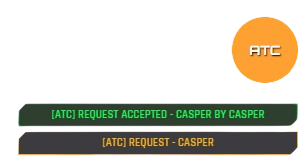
Landing clearance system for immersive base ops.
- Overlay: A prominent ATC button is visible. When a player clicks it, an
[ATC] REQUESTnotification appears. Another player can validate it — their callsign is shown as confirmation. - Admin: Toggle the ATC module on or off.
4 — Resource Counters
Track shared inventories: ore, ammo, medpens, fuel cells…
- Admin: Set the number of counters. For each row, define a name and a max value.
- Overlay: Any player can update the current value. The counter turns red when a low/high threshold (set by Admin) is reached. The first player to label an empty counter "locks" the label to their name, but anyone can increment or decrement the value.

5 — Vehicle Operations (Fleet, Mining, Cargo)
Three specialised modules to track ship fleets:
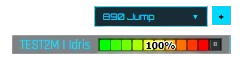
- Fleet (Standard): Callsign and health of capital ships. Supports "Traffic-light" mode (buttons) or "Percentage bar" mode. Manual SOS red alert per ship.
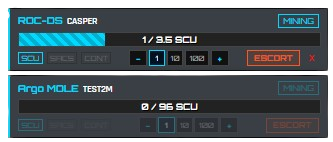
- Mining: Ship type, hold fill level in SCU/SAC/CONTAINER, status button (MINING / RETURN / REFINERY) and an escort request button.
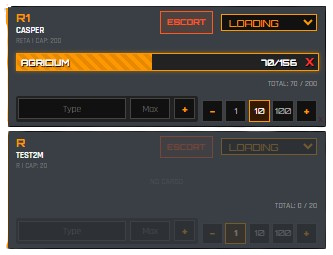
- Cargo: Freight tracking with fill percentage and current status (LOADING / TRANSIT / DELIVERY / COMPLETED).
6 — Ground Squads & Wingmen
Organise players whether they're on foot or in fighter escorts.
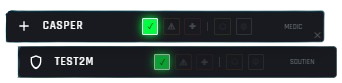
- Squads (Infantry): Name your squad (e.g. ALPHA), add members, assign visual roles (Leader, Medic) and track individual status.
- Wingmen (Pilots): Same concept adapted for space combat (Wings: Red, Blue). Players can flag low fuel or quantum.
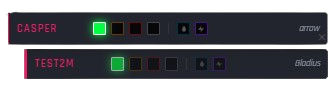
7 — Droplight (Jump Lights)
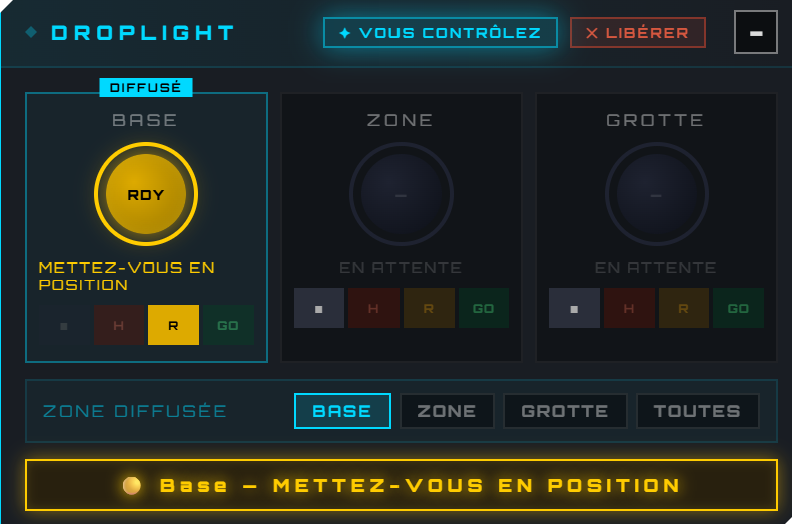
Military drop-signal system for troop deployments from a carrier ship.
- Observer view (Troops): Displays the active light state broadcast by the pilot. If no one has control, a ⊕ TAKE CONTROL button is available.
- Pilot view: Accessible only to the player who took control. Set each zone state (■ Standby / HOLD / READY / GO) and choose which zone is broadcast.
- Admin: Enable/disable the module, rename zones (Alpha, Bravo, Charlie), force-release control.
8 — Alerts & Discord Webhook
Broadcast an alert across all players in an instance, or ping your Discord server.
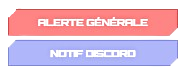
- General Alert: Triggers a siren and full-screen red visuals on every player's overlay simultaneously.
- Discord Alert: Click DISCORD to send an @everyone ping to the configured webhook channel. Set up the webhook URL via the ⚙️ settings button.
Supervision — Control Tower
Accessible from the 🛠️ Create a Supervision button on the home page. Designed for the fleet coordinator of a large operation. There is no separate overlay — the Admin page is the interface.
Setup
In the floating configuration window, select which instances to absorb into your Control Tower. If an instance is private (PIN-protected), you will be prompted to enter its PIN before it is displayed.
High-density dashboard
Once instances are connected, the page switches to a live grid. Only active elements bubble up — active missions, triggered alarms, running timers, miners with SOS — giving you an ultra-fast read of the entire fleet's status at a glance.